
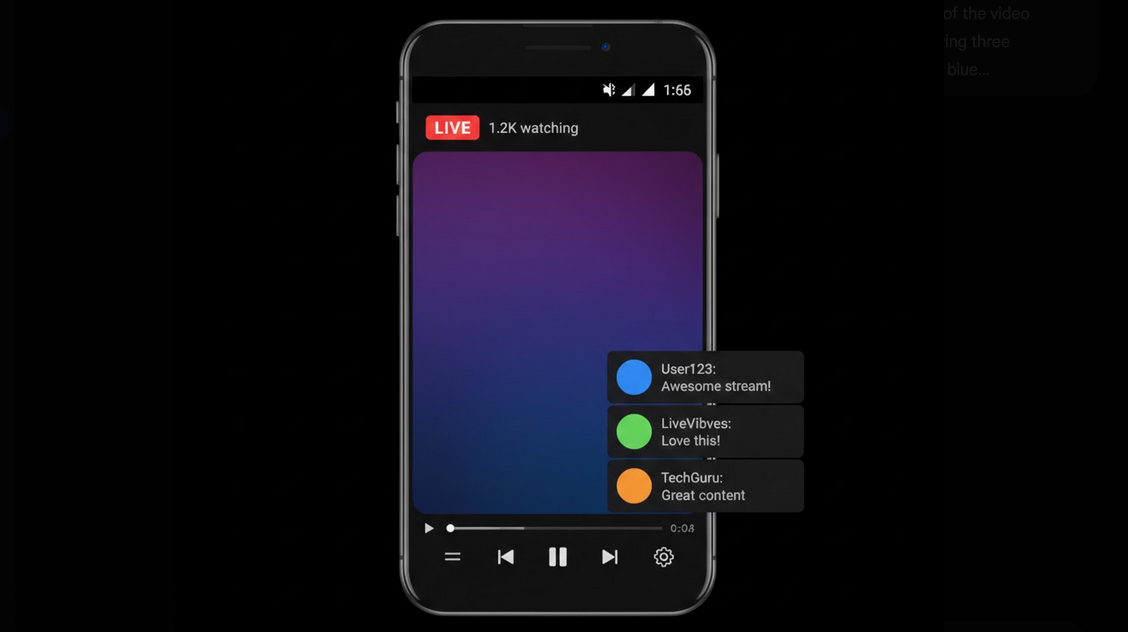
Live Broadcasting and Communicating With Your Subscribers Are the Best Way to Communicate on YouTube. Regardless of the type of content you want to broadcast on YouTube (Q&A, game streaming, and anything else), live broadcasting helps to get connected with your audience immediately. Making live broadcasts on YouTube using Android device is very simple.
Why is Live Broadcasting Important?
There are some unique features of live content, which can’t be presented in pre-recorded videos. Real-time interaction with the viewers, quick reaction and responses of creators and the spontaneity of live broadcasting make everything more interesting. Moreover, YouTube algorithm gives preference to live broadcasts, thus making you popular.
Requirements to Make a Live Broadcast on YouTube With Android Device
In order to make a live broadcast on YouTube using your Android device, you need to satisfy the following requirements:
- Channel verification: Your channel needs to be verified using your phone number.
- No restrictions: Your channel doesn’t have any restrictions regarding live broadcasting within last 90 days.
- Number of subscribers: You need to have at least 50 subscribers to make live broadcast with your Android device, while for desktop devices there is no such requirement.
- Enable live streaming: You need to enable live streaming in settings of YouTube studio. It takes about 24 hours.
- Connection: Stable Wi-Fi or mobile connection will give you great experience during your live broadcast.
- How to Make a Live Stream
- Open YouTube App: Open YouTube application on your Android device.
- Tap + icon: Tap the button to create content on your screen.
- Select “Go Live”: Select live stream option from the list.
- Set title and privacy: Set the descriptive title for your broadcast and choose the privacy of your live stream.
- Write description: Write the description to inform the viewers about your live stream.
- Take screenshot: Take a photo or upload screenshot, which will be used as a thumbnail for your live broadcast.
- Start the stream: Tap “Go live” button to start your broadcast.
- Interaction Through Live Chat
Live chat is the main means of communication during live broadcasts on YouTube. Viewers send their messages in real time and creators respond to them. You may appoint moderators who will control live chat and delete undesirable messages. Super Chats and Super Stickers give you an opportunity to send paid messages, which will be highlighted in live chat. This way, creators can earn some extra money from live chats.
Watching YouTube Live Broadcast With Vanced Application
YouTube Vanced is a great application for watching live broadcasts. There are no ads, which appear before and during the live broadcast. It means that you can attend your favorite live broadcast immediately without waiting for ads. Live chat works perfectly; you can use it for communicating with creators and other viewers.
With the help of Vanced MicroG, which manages your authentication, your Google account will be linked. You may use super chats and write messages in live chat. Moreover, you will get notifications whenever your favorite creators go live.
Tips to Have Great Live Streams
- Announcement in advance: Inform your subscribers about your future plan to go live using community posts and social networks.
- Equipment check: Conduct a test live broadcast in order to check everything.
- Interaction with the live chat: Read and respond to messages sent by your viewers.
- Proper lighting: Lighting with natural or ring light improves video quality of mobile camera.
- Monitoring Internet connection: Monitor your internet speed and lower the quality of live broadcast in case of buffering.
- Setting a schedule: Regular live broadcasts will help you to build your audience, which will know when you go live.
- Who Needs YouTube Live
- Content creators: If you are a YouTuber, then live broadcasting will help you to interact with your audience.
- Gamers: Players who broadcast their gaming sessions and communicate with their fans.
- Educators: Teachers who conduct live lessons or workshops.
- Event organizers: You may broadcast concerts, conferences or any other events to remote audience.
- Viewers: Everyone who enjoys spontaneity of live broadcasts.
- Conclusion
Live broadcasting on YouTube with Android device gives you access to all broadcast options right in your pocket. The process of live broadcasting is easy and the interaction is instant. The audience is huge. If you are either YouTuber creating live broadcasts or a viewer attending live broadcasts, then YouTube Vanced gives you an opportunity to watch ad-free and smooth live streams right from the first seconds.
